

🔑 Org OnlyBeta
What is this feature?
Camera Handwriting Input adds a camera button directly inside Playlab conversations. Users can snap a photo of handwritten notes, equations, diagrams, or other paper-based inputs and send them to the AI without leaving the app. There is no need to save a photo separately, find it in a file browser, or upload it manually. When the AI receives a camera capture, it recognizes that the image contains handwriting and reads the content accordingly, including math equations. Math is rendered with LaTeX formatting so equations display cleanly in the conversation.Why is this useful?
A lot of thinking, especially in math and science, still happens on paper. Getting handwritten notes, equations, or diagrams into an AI conversation usually means taking a photo, saving it, opening a file picker, locating the image, and uploading it. That is a lot of steps, and each one is a place where a user might lose focus or give up. With Camera Handwriting Input, users tap one button, take a photo, confirm it looks good, and send. The AI is prompted to treat the image as handwriting, so it reads content left to right, top to bottom, and outputs formatted math in its response. This can be particularly helpful for younger users, users with accessibility needs, or anyone who thinks best with a pencil in hand. Rather than asking people to change how they express their thinking, it brings paper-based inputs into the digital conversation.Watch it in Action
How does it work?
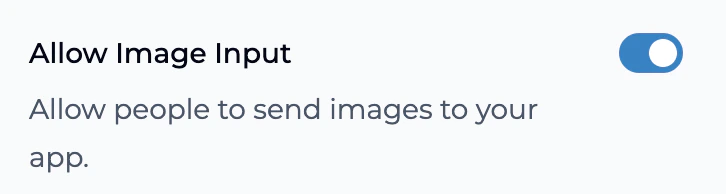
Enable Image Inputs at the org and app level
Camera Handwriting Input requires image inputs to be turned on in two places. First, your organization admin must enable image inputs in the Organization Settings.
Tap the camera button
In the chat input area, tap the camera icon next to the file upload button. This opens a full-screen camera view. If your browser asks for camera permission, tap Allow.
Take a photo of your handwriting
Point the camera at your handwritten input and tap the capture button. You can switch between front and rear cameras if needed. If you use the front-facing camera, the image is automatically flipped so text reads left to right.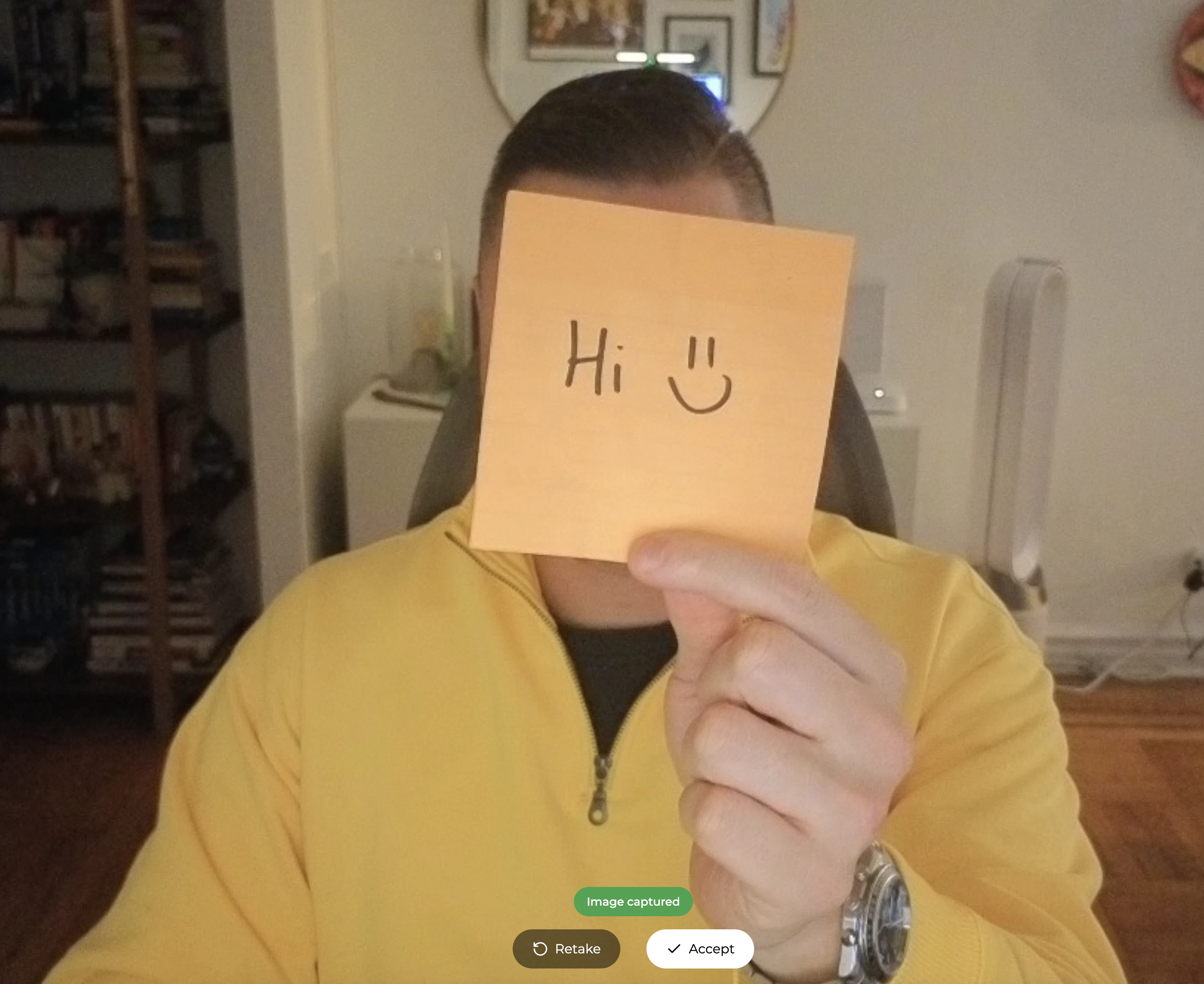
Review and send
After capturing, you will see a preview of your photo. Tap Retake if the image is unclear, or tap Accept to attach it to your message. Add any text you want to include, then send your message as usual.
Tips and Best Practices
Avoid Blurry Images
Hold the camera steady and make sure the image is in focus before capturing. Blurry or out-of-focus photos make it much harder for the AI to read your handwriting. If the preview looks unclear, tap Retake.
Write in Bold, Clear Lines
Use a dark pen or marker and write with clear, well-spaced lines. Light pencil marks, overlapping text, or cramped spacing can reduce accuracy. The bolder and cleaner the writing, the better the results.
Good Lighting, No Glare
Make sure your paper is well-lit and avoid shadows or glare across the page. Uneven lighting can obscure parts of your handwriting and lead to incomplete interpretation.
Double Check the AI's Response
Handwriting interpretation is not 100% accurate. Always review the AI’s response to make sure it read your input correctly, especially for math equations, variable names, or symbols that can look similar in handwriting.
One Section at a Time
For best results, capture one problem or section at a time rather than an entire page. This helps the AI focus on the specific input you want feedback on.
Add Context in Your Message
After capturing a photo, add a message like “Can you check if I solved this correctly?” or “Help me with step 3.” This gives the AI more context about what kind of feedback you need.
What’s Supported
- Works on any device with a camera (phones, tablets, laptops with webcam)
- Supports front and rear cameras with automatic switching
- Front-camera images are automatically flipped so handwriting reads correctly
- Math equations are rendered with LaTeX formatting in the AI response
- Available in English and Spanish
- Fully accessible with keyboard navigation and screen reader support
- Photos follow the same upload pipeline, image optimization, and content moderation as regular image uploads
Known Limitations
- Requires browser camera permissions to be granted
- Image inputs must be enabled at both the organization and app level
- Handwriting recognition accuracy depends on legibility, lighting, and image quality
- Very complex diagrams or mixed text and drawings may not be fully interpreted
- Each image uses a flat token count regardless of content complexity
Frequently Asked Questions
Do I need to enable anything to use this feature?
Do I need to enable anything to use this feature?
Yes. Image inputs must be enabled at the organization level by an admin, and the app creator must also enable image inputs in the app’s settings. Once both are enabled, the camera button will appear automatically in supported browsers.
Does this work on all devices?
Does this work on all devices?
It works on any device with a camera and a browser that supports the standard camera API. This includes most modern smartphones, tablets, Chromebooks, and laptops with webcams. It uses the same browser API as Playlab’s voice input feature.
What happens if I use the front-facing camera?
What happens if I use the front-facing camera?
Front-facing cameras typically mirror the image (like a selfie). Camera Handwriting Input automatically detects this and flips the image so your handwriting reads correctly from left to right.
Can the AI read all types of handwriting?
Can the AI read all types of handwriting?
The AI does its best to interpret a wide range of handwriting styles, but results are best with clear, legible writing. Very messy handwriting, overlapping text, or low-quality images may produce less accurate results.
Is my photo stored or shared?
Is my photo stored or shared?
How is this different from uploading a photo manually?
How is this different from uploading a photo manually?
The end result is the same, but the experience is much faster. Instead of taking a photo separately, saving it, and then finding and uploading it through the file picker, you can capture and send in two taps. The AI also receives a hint that the image contains handwriting, which improves interpretation accuracy.
We want your feedback! Camera Handwriting Input is an experimental feature and we are actively improving it. If you have ideas, run into issues, or want to share how you are using it, reach out to us.